
QR Code for Google Reviews: How to Make One Free (and When NFC Is Better)
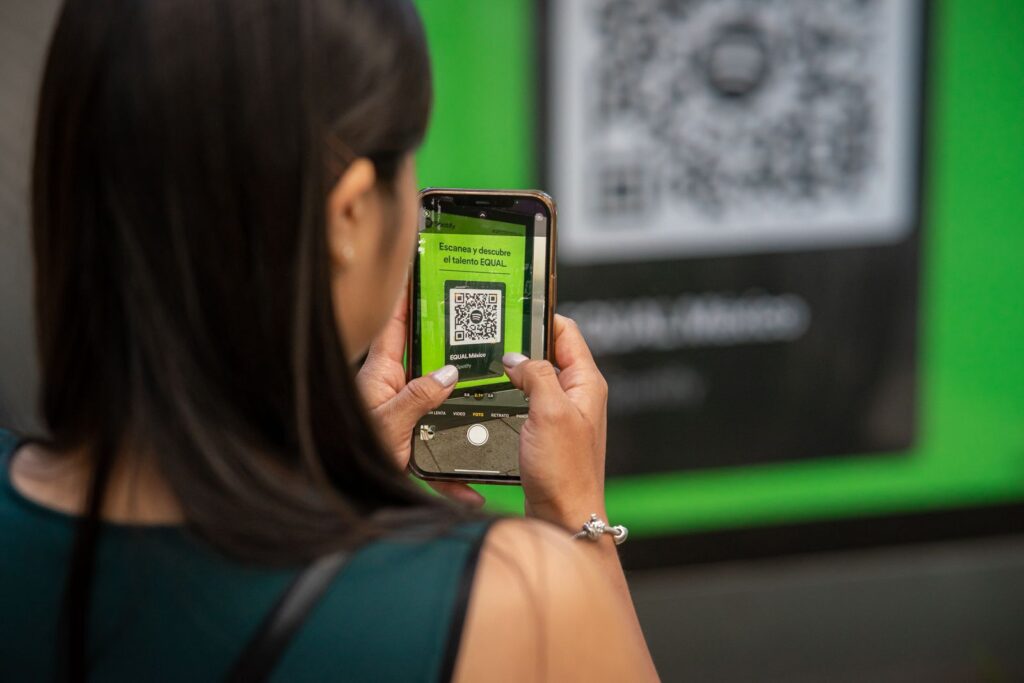
A QR code for Google reviews is the cheapest way to turn “I’ll review you later” into a review right now. The customer points their camera, the review box opens, and they’re done before they leave the counter.
The catch is that many review QR codes don’t work as well as they should. They’re printed too small, stuck where nobody looks, or made on a “free” site that switches them off a month later. This guide shows you how to make one properly, for free, and when a tap-to-review NFC card is the better buy.
If you’re still building your overall review habit (when to ask, what to say on WhatsApp, how to reply), start with our guide on how to get Google reviews in South Africa. This post is the hands-on, print-and-test part.
Step 1: Get the QR code straight from Google (free)
You don’t need a third-party generator. Google Business Profile now creates a review QR code for you. Google’s help page on creating a review link or QR code gives these steps:
- On a computer, open your Business Profile while signed in to the account that manages it.
- Select Read reviews, then Get more reviews.
- Right-click the QR code and choose Save image as… to download it. Use the copy icon if you also want the link.
Google says review QR codes can currently only be generated in a computer browser, not on a phone. If you only have a phone, borrow a laptop for five minutes or use an internet café; it’s a once-off job.
Why use Google’s own code? It points straight at your review form, it costs nothing, and there’s no outside company in the middle that could switch it off.
Step 2: If you use another generator, choose static
Sometimes you’ll want a code made elsewhere, for example to fit a designer’s file. In that case, paste in your Google review link and make sure the code is static, not dynamic.
- A static QR code stores your link directly in the pattern. It works for as long as the link works.
- A dynamic QR code stores a short redirect link owned by the generator company, so they can track scans and let you change the destination.
Dynamic codes are useful, but there’s a trap. One large generator’s help centre explains that when its free trial ends, dynamic codes are deactivated and scans go to a service page instead, while static codes keep working. Imagine 500 printed table cards suddenly pointing nowhere. If a site asks for an email address or offers a “free trial”, check which type you’re getting before you print.
Step 3: Print it at a size that actually scans
Size depends on how far away the customer will be. A widely used rule of thumb is a 10:1 ratio: scanning distance should be about ten times the width of the code. QR Planet’s size guide recommends a minimum of 2 × 2 cm for a code scanned from about 20 cm, and roughly 10 × 10 cm for an A3 poster read from a metre away. QR Code Generator’s own print guidance gives 3 × 3 cm as the minimum for static codes, because static codes hold the full link and so have a denser pattern.
Google review links are fairly long, so play it safe:
| Where it goes | Typical scan distance | Suggested minimum size |
|---|---|---|
| Receipt, business card, parcel insert | 15–25 cm | 3 × 3 cm |
| Counter card or table stand | 30–50 cm | 4–5 × 4–5 cm |
| Shop window or wall poster | 1–1.5 m | 10–15 × 10–15 cm |
Two more print rules:
- Leave a clear border. The QR standard calls for a quiet zone four modules wide (four of the little squares) on every side. Don’t let text, borders or design elements crowd it.
- Keep contrast high. A dark code on a plain light background is the safest choice. Light-on-dark, low-contrast brand colours or a busy photo behind the code all make scanning less reliable.
Step 4: Put it where the waiting happens
Placement matters more than design. Put the code where customers have a free hand and a spare minute:
- Till or payment point, next to the card machine (people wait while a Yoco or bank card machine connects).
- Restaurant and café tables, on a stand or the bill folder.
- Salon and spa stations, where clients sit while treatments set.
- Inside the parcel, for online orders, so it arrives at the moment the customer checks their order.
- Receipts and invoices, which Google itself suggests as a place for your review link.
Add a one-line instruction next to the code: “Scan to leave us an honest Google review”. People respond better when they know what will happen.
Avoid spots with glare (glossy lamination under a downlight), places where people walk past without stopping, and outdoor positions that fade in the sun.
Step 5: Test before you print 200
Do this before the print run, and again with the first finished copy:
- Scan with an iPhone and an Android phone, ideally an older budget Android too.
- Scan from the real distance and angle a customer will use, not from 5 cm away.
- Check it opens your business’s review form, not your profile page or someone else’s listing.
- Test in the actual lighting where it will live.
- Test while signed out of Google on one phone, so you see what a customer without an account sees.
If any test fails, make the code bigger, increase contrast, or move it.
QR vs NFC: when tap-to-review is better
QR codes need the customer to open the camera, focus and tap the link that pops up. NFC (near-field communication) cuts that down to holding the phone against a card or sticker.
Which phones support it?
- iPhone: Apple’s developer documentation says iPhone XS and later support background tag reading, so the phone can read a tag without an app. A notification appears and the customer taps it to open the link. It doesn’t work in some situations, for example while the camera or Apple Pay Wallet is in use or in airplane mode.
- Android: Android’s NFC documentation says devices usually look for NFC tags when the screen is unlocked, unless NFC has been switched off in Settings. Not every Android phone has NFC, particularly some entry-level models.
So NFC isn’t universal. That’s why the best setup offers both: NFC for a quick tap, and a QR code for any phone that doesn’t respond.
Choose QR when you need something free, printed in quantity (receipts, flyers, parcel inserts) or readable from a distance (posters, windows).
Choose NFC plus QR when you’re asking face to face at a counter or table, staff hand the card over, and speed matters.
That’s exactly what the NFC Star Rating Card does: a credit-card-sized PVC card with an NFC chip and a QR code, so the customer taps or scans. For packaging, menus and POS, the Waterproof Google Review Stickers (NFC215 chip, 10 per pack) put tap-to-review on almost any surface.
Common mistakes with a QR code for Google reviews
- Linking to your profile, not the review form. Customers then have to hunt for “Write a review”. Use the link from Get more reviews.
- Using a dynamic code from a free trial. It may stop working when the trial ends.
- Printing too small or crowding the quiet zone with design.
- No instruction. A naked QR code could be a menu, Wi-Fi or a payment. Say what it’s for.
- Adding an incentive. “Scan, review and get 10% off” breaks Google’s policy on incentivised reviews. Keep the card about honest feedback only.
- Filtering with a “rate us first” page. Sending only happy customers to Google is review gating, which Google also prohibits.
- Never testing again. Retest whenever you change your business name, merge profiles or reprint.
Get your code working today
Download your free QR code from Google, print a test at 4 × 4 cm, scan it with two phones and put it next to your card machine. That alone will bring in more reviews than a perfect plan you never print. When you’re ready for a tap-and-scan option at the counter, the NFC Star Rating Card covers both. And to make those reviews count in search, work through our local SEO checklist.
Frequently asked questions
How do I create a QR code for Google reviews for free?
Open your Google Business Profile on a computer, select Read reviews, then Get more reviews, and save the QR code image Google provides. It’s free and points directly to your review form. Google says this option currently works in a computer browser, not on a phone. If you use another generator instead, choose a static code so it doesn’t stop working when a free trial ends.
Do Google review QR codes expire?
A QR code made from Google’s Get more reviews option, or any static code containing your review link, doesn’t expire on its own; it works as long as the link does. Dynamic codes are different, because scans pass through the generator company’s server. Some providers deactivate dynamic codes when a free trial or subscription ends, so check the terms before printing.
What size should a Google review QR code be?
Size it for the scanning distance. A common guideline is roughly 1 cm of code width for every 10 cm of distance, with 2 × 2 cm as an absolute minimum for close-up scanning. Because Google review links are long, 3 × 3 cm is a safer minimum for receipts and cards, 4–5 cm for counter stands, and 10 cm or more for posters.
Can an iPhone read NFC review cards?
Yes, most current iPhones can. Apple’s documentation says iPhone XS and later read NFC tags in the background, without an app: the customer holds the phone near the card, taps the notification and the link opens. It won’t read while the camera or Apple Pay Wallet is open, or in airplane mode, so it’s worth having a QR code on the same card as a backup.
Free weekly marketing tips
Get practical marketing ideas for South African small businesses
One short email a week: a tactic you can use, a tool worth trying, and what is working for local brands. No spam.